Guides
Test a checkout
Buy something from your own store with a Stripe test card, from the product page to the order page and the email that follows.
Needs Particle · 5 minutes
Before you start
- Stripe connected and Ready, at least one product, shipping set and the site published, so the store pages are live. The earlier guides cover each.
- The connection card shows Test mode. Test cards only work in test mode.
1. Add something to the cart
Open your live site and a product page, /product/{handle}. Press Add to cart. On a product with variants, pick one first. The header's cart control counts the line.

2. Open the cart
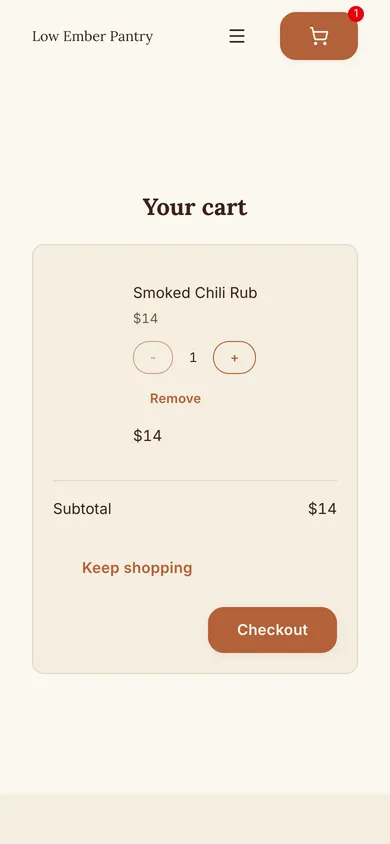
Press the cart control, or go to /cart. Your cart lists each line with a quantity control and a remove button, then Subtotal and Checkout. When the store ships to more than one country a Ship to choice sits above the button.
Every price here is re-read from your product list, so a change you made a moment ago shows at once. A product you deleted is struck through.

3. Pay with a test card
Press Checkout. Stripe Checkout opens on your connected account with the lines, the shipping choices from your settings and tax if Stripe Tax is on. Fill the form with Stripe's test card:
| Field | Value |
|---|---|
| Card number | 4242 4242 4242 4242 |
| Expiry | Any date in the future |
| CVC | Any three digits |
| Name, email, address | Anything in a country you ship to |
Press Pay. Stripe sends the shopper back to your site.
4. Read the order page
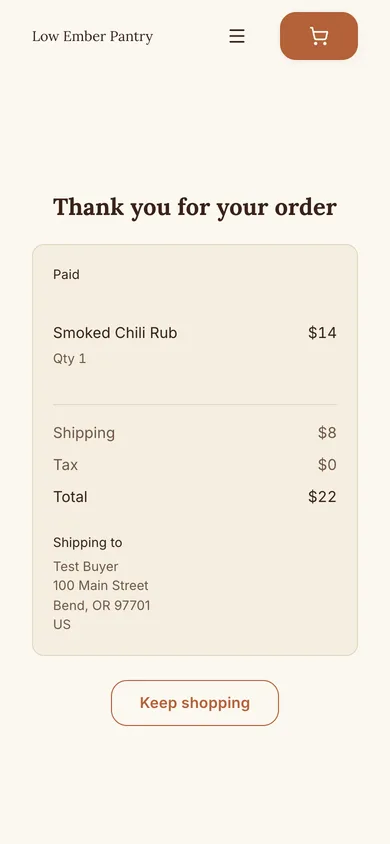
The shopper lands on /order/{id}: Thank you for your order, the lines, shipping, tax, total, Shipping to with the address, and the order's status, Paid. The address is the capability: anyone with the link can read the page, so it has no login.

5. Check your side
Three things happened the moment Stripe confirmed payment:
- The order was written to the site. Under Store, pick Orders; it is there with the status To ship. See Read the Orders tab.
- An email went to your Order email with the lines and the ship-to address.
- The payment sits in your Stripe test dashboard, under Payments.
Refund the test order from Stripe when you are done, or leave it; test payments cost nothing.
Done
You have bought from your own store and seen every surface the shopper sees. Next: read the Orders tab.
Problems
- "This store is not taking orders right now." Stripe is not Ready, or the owner's plan lapsed. Open the Store tab.
- "This store is not open yet." The site is published but the store was opened after the last publish. Publish again.
- "Some items changed. Review your cart and try again." A line's price or stock changed since it went in the cart. The cart shows the new state; press Checkout again.
- Stripe Checkout refuses the card. You are in test mode with a real card, or live with a test card. Match the card to the badge on the Store tab.